
How to Extract a Table from a Screenshot into Excel (2026 Guide)
How Do You Extract a Table from a Screenshot?
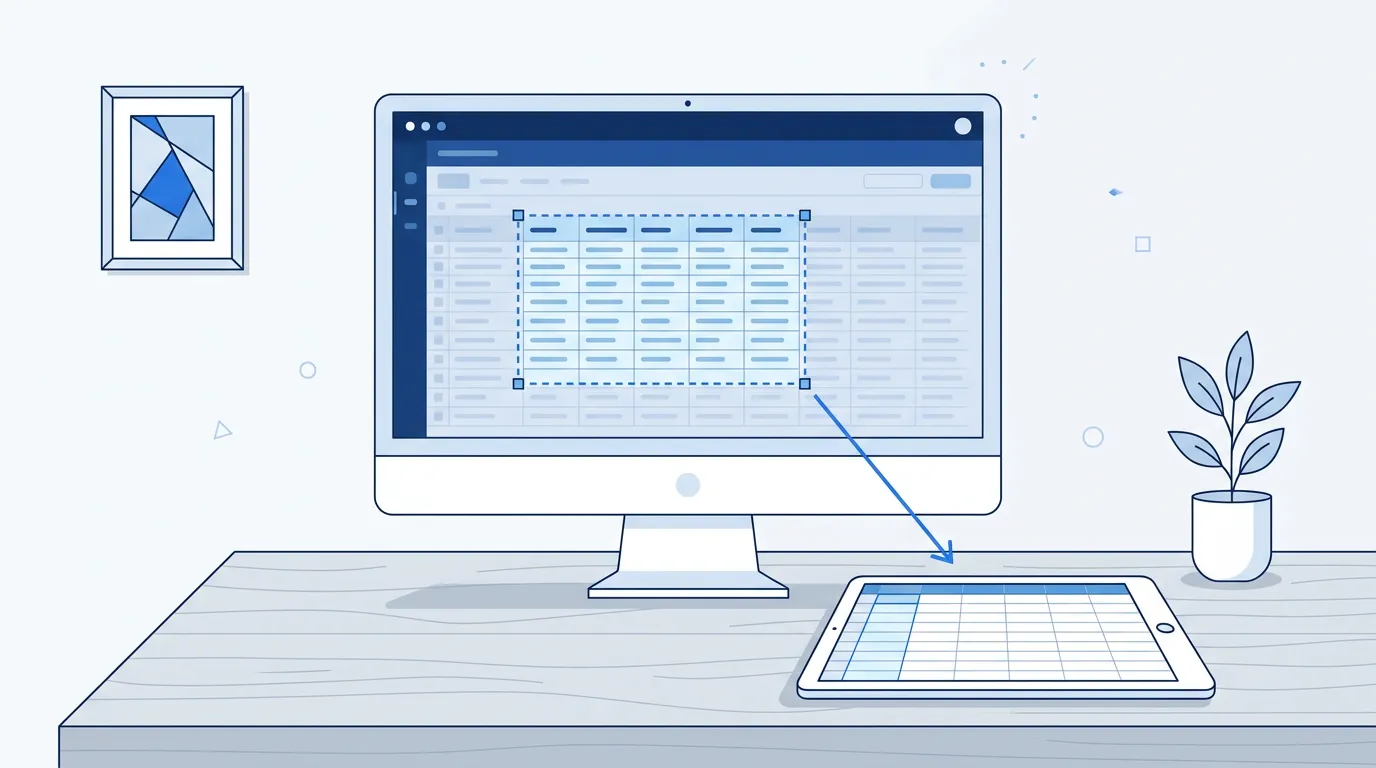
To extract a table from a screenshot, capture just the table area (Win+Shift+S on Windows, Cmd+Shift+4 on Mac), upload the PNG to an OCR-based converter such as our free image to Excel converter, review the extracted cells in the on-page preview, and download the result as .xlsx or CSV. A clean screenshot converts in under a minute.
Screenshots are actually the best possible input for this job: unlike photos, they are pixel-exact and have no perspective distortion. This guide covers where people most often grab tables from, how to crop them, and the screenshot-specific pitfalls — dark-mode contrast, high-DPI scaling, tables cut off by scrollbars — that the general image to Excel workflow only touches on briefly.
Why Are Screenshots the Best Input for Table Extraction?
A screenshot is a digital-to-digital copy. The pixels land exactly where the original software rendered them, so there is no camera angle, no lens distortion, no page curl, and no uneven lighting — the four failure modes that make photographed and scanned tables hard to read. Column spacing stays true, which is exactly what structure recognition depends on.
Most screenshots are also full-resolution PNG captures with sharp character edges, while photos of screens add moiré patterns and glare. If you have the choice between re-photographing a screen and taking a screenshot, always screenshot.
Two limits still apply: the recognizer understands English and Chinese content (or a mix of both), and each image can be up to 10 MB. A full-screen capture from a 4K monitor can approach that size, so crop first — which you should be doing anyway.
How Do You Convert a Screenshot to Excel Step by Step?
Here is the complete workflow, from capture to a downloaded spreadsheet:
Where Do the Tables People Screenshot Usually Come From?
Web pages. HTML tables on pricing pages, comparison sites, and reports. These are ideal — clean grid lines and even spacing. Just beware of sticky headers and lazy-loaded rows: scroll through the whole table once before capturing so nothing renders blank.
Business software. ERP, CRM, and admin backends often lock export permissions down, which is precisely why the screenshot route is popular. These interfaces add noise you must crop away: row numbers, checkboxes, action buttons, and frozen panes. The data columns you want sit between them, so crop tightly to just the header row and data columns.
Chat windows. Tables pasted into Slack, Teams, or WeChat frequently arrive as images — sometimes re-compressed and resized by the chat client. Crop to the table itself, and if the image looks soft, ask the sender for the original file rather than converting an enlarged blur.
If what you actually need is the text and not the grid — for example, capturing paragraphs or an unstructured list — the image to text tool is the lighter-weight choice; table extraction is for when the row-and-column structure matters.
What Screenshot-Specific Problems Should You Watch For?
Dark mode contrast. Light-gray text on a dark background is the hardest common screenshot to read. Switching the source app to light mode before capturing takes ten seconds and removes the problem entirely.
High-DPI scaling. Capturing a scaled or zoomed-out interface (browser zoom below 100%, or a laptop at 150% display scaling) shrinks the characters. Set zoom to 100% before you capture; do not enlarge a small screenshot afterward, which blurs the edges without adding information.
Tables cut off by scrollbars. Horizontal scrollbars hide columns; vertical ones hide rows, and pagination hides everything past page one. The converter can only read what is in the frame, so capture in sections when the table does not fit.
Merged or multi-level headers. Two-row headers with merged cells — common in exported reports — can shift the column alignment below them. The output is still editable on the page, so realign the headers first, then spot-check the columns against the original. For a systematic pass over column order, see the guide on fixing OCR column errors.
How Does This Compare with Excel's "Data from Picture"?
Microsoft's built-in "Data from Picture" feature inserts a table image into Excel and reads it there. It works, but it requires a paid Microsoft 365 subscription and the desktop or mobile Excel app installed.
A web-based converter needs neither: you upload the screenshot in the browser, review the cells, and download the file — no subscription and no installation, with a free daily quota (currently 3 conversions per day, no signup) for the Excel extraction tool. Paid limits are on the pricing page.
The practical difference is the review step. With either route you should confirm flagged cells before trusting the data; the difference is that the on-page preview puts editing before download, so a misread number never reaches your spreadsheet in the first place.
Turn Your Next Table Screenshot into a Real Spreadsheet
Screenshots are the easiest table source to convert: capture only the table with Win+Shift+S or Cmd+Shift+4, keep the app in light mode at 100% zoom, upload, review the flagged cells, and download a real .xlsx or CSV file.
This guide is the screenshot-specific companion to the general image to Excel workflow; if your columns come out misaligned after conversion, the walkthrough on fixing OCR column errors shows how to find and correct them fast.
Extract a Table from Your ScreenshotFrequently Asked Questions
Can I convert a screenshot to Excel for free?
Yes. No signup is needed and the Excel extraction tool has a free daily quota (currently 3 conversions per day). Higher-volume needs are covered on the pricing page.
What is the best screenshot format for table extraction?
A fresh PNG captured at 100% zoom. Avoid re-saved or enlarged screenshots, which blur character edges, and keep the file under 10 MB.
How do I screenshot a table that does not fit on one screen?
Capture it in sections that overlap by one row, then convert each section separately and paste the results into one spreadsheet. A table hidden behind a scrollbar or pagination cannot be read from a single capture.
Why did my screenshot's columns come out misaligned?
The usual causes are merged or multi-level headers and columns cropped mid-character. Realign the headers in the on-page preview, then check the guide on fixing OCR column errors for a systematic review method.
Does dark mode affect screenshot table recognition?
Yes — light text on a dark background has much lower contrast and is read less reliably. Switch the source app to light mode before capturing for a noticeably cleaner result.
Which languages can table screenshots contain?
Currently English and Chinese, including tables that mix the two. Tables in other languages are not reliably recognized yet.