
Why Does OCR Put Numbers in the Wrong Column? How to Find and Fix Column Misalignment
Why Does OCR Put Numbers in the Wrong Column?
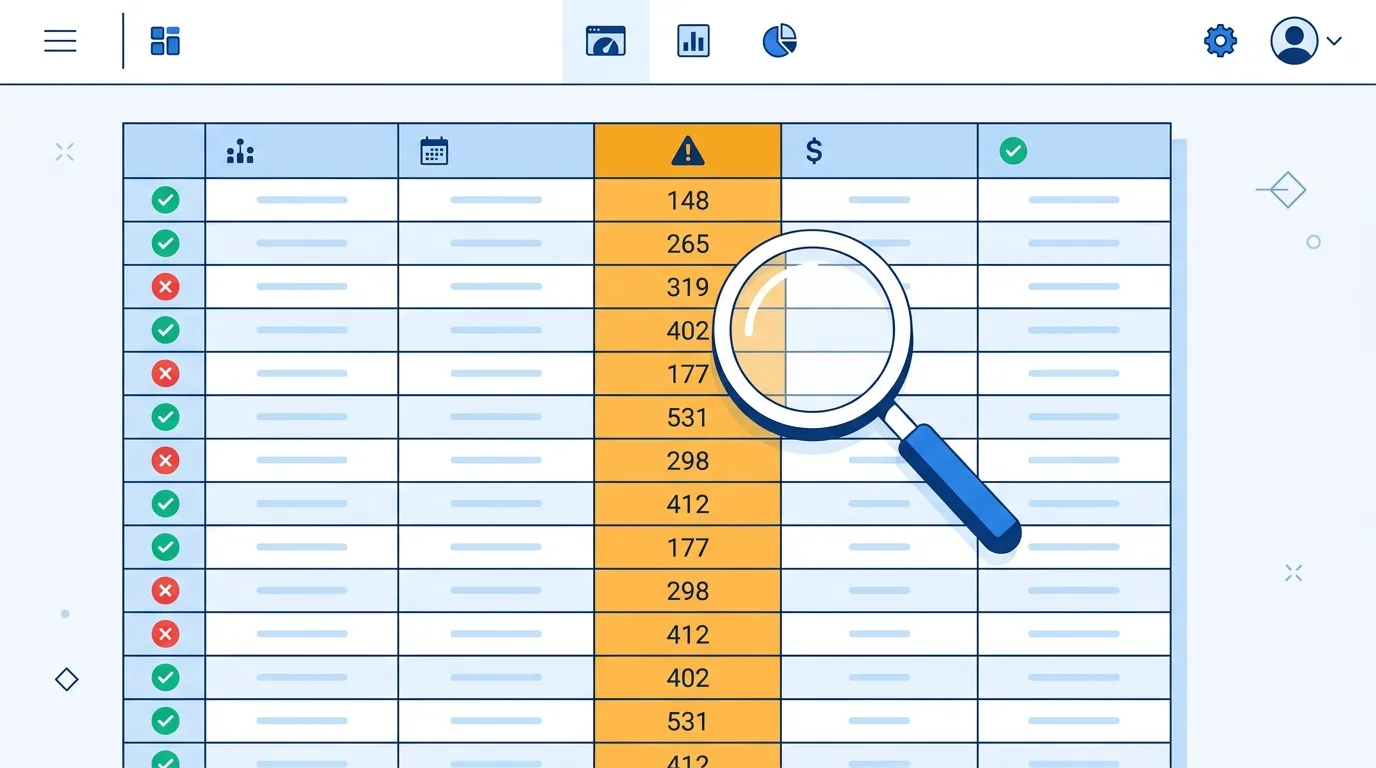
OCR does not know what a column is — it only sees characters at pixel positions and has to guess where the boundaries between columns fall. Anything that blurs those boundaries pushes a value into the neighbor: a photo taken at an angle compresses the spacing, a cell that wraps onto two lines looks like two cells, a merged header hides where columns start, and one empty cell shifts everything after it left.
The fix is usually faster than you expect: check the first and last row of the extracted table, spot-check the cells where rows meet columns, and repair in place — or, if the misalignment runs through the whole table, re-shoot a straight-on image and convert it again with our free image to Excel converter. This guide explains each cause and how to deal with it.
How Does OCR Decide Where One Column Ends and the Next Begins?
A table recognizer works in two passes. First it maps the structure: it looks at the vertical whitespace between blocks of characters — or at the drawn grid lines, if the table has them — and infers where each column starts and ends. Only then does it read the characters inside each inferred cell and assign them a row and a column.
That first pass is where misalignment is born, because it is a guess based on geometry, not meaning. The recognizer has no way to know that "1,250" belongs under "Revenue" and not under "Units"; it only knows that the digits sit a few pixels to the left of the column boundary it drew. When the geometry is clear — evenly spaced columns, straight-on shot, strong grid lines — the guess is almost always right. When the geometry is muddled, the digits quietly drift one column over.
This is also why two images of the same table can produce different results. A crisp screenshot gives the recognizer clean spacing to work with; a photo of a screen taken from the side gives it compressed, uneven spacing and a much harder guess. If you want the conversion mechanics themselves, the guide on converting an image to Excel covers the process step by step.
What Actually Causes Values to Land in the Wrong Column?
Five causes account for nearly every misaligned column you will see:
Tilted photos. A shot taken at an angle foreshortens the table. Narrow columns get squeezed together until two of them fall inside the same inferred boundary — and a common tell of this is the vertical projection collapsing, where the gaps between characters stop showing up as gaps at all. Fix the angle and the misalignment usually disappears with it.
Cells that wrap onto two lines. A long value like "Accounts Receivable (Net)" that breaks across two lines can be read as two rows, leaving the numbers next to it misaligned. Wrapped text inside a cell is the hardest case for geometry-based structure detection.
Merged or multi-level headers. When a header spans several columns ("Q1" over "Jan / Feb / Mar"), the top row does not line up with the data columns beneath it. The recognizer usually handles this, but a two-level header drawn with inconsistent spacing is a frequent source of off-by-one shifts.
Empty cells. A blank cell produces no characters, so the recognizer gets no signal that a column exists there. Everything after the blank can shift one position left, and once one row shifts, the eye starts reading the whole table as wrong.
Character confusion at tight spacing. When characters sit close together, similar glyphs get misread — O versus 0, 5 versus S, 1 versus l — and a misread digit can make a value look like it belongs in a text column. This is a reading error rather than a structure error, but it shows up to you the same way.
Which Misaligned Columns Cost You the Most?
Not every cell error is equal. A misaligned product name is obvious the moment you read it; a misaligned number usually still looks plausible, which is exactly what makes it dangerous.
Amounts and currency. A price of 12,500 landing under a different product, or 125.00 read where 1,250.00 was printed, is a wrong number that still passes a casual glance. Totals, unit prices, and quantities deserve the closest review of anything in the table.
Dates. A date read one day off, or a day and month swapped, propagates silently into any sorting, filtering, or monthly rollup you do downstream. A misaligned date does not look broken — it just quietly moves the record into the wrong period.
Numeric columns in general. Excel cannot tell you that a number is in the wrong column; it will happily sum it there. Text errors announce themselves, numeric errors do not — which is why the review hints in our image to Excel tool specifically flag empty cells and number or date values as high-risk, so your attention goes where an error is most expensive.
A practical rule: if a column is numeric, treat every cell in it as unverified until you have looked at it against the original image. Two minutes of checking beats an hour of reconciling a spreadsheet that balances but is wrong.
How Can You Spot Column Misalignment in Under a Minute?
You do not need to proofread every cell. Three checks catch the large majority of column errors:
Check the row totals. If your source table has a total row, compare it to the sum of the extracted column. If the bottom of the extracted table still matches the printed total, the column above it is very likely intact. This one check validates an entire column at once.
Spot-check the diagonal. Read the top-left cell, then the bottom-right cell, and one or two cells in between along the diagonal. Misalignment almost never affects a single cell — it affects a whole row or column, so a value that survives at both ends of the table is a strong signal that the structure came through correctly.
Look for type breaks inside a column. A column that should be all numbers but contains a word — or a text column that suddenly contains a lone digit — is the clearest fingerprint of a shifted row. Scan each column's data type top to bottom; anything inconsistent marks exactly where the shift starts.
Do these checks in the on-page preview rather than after download. That way you fix the cells once, in place, and the exported .xlsx or CSV already contains the corrected values.
Should You Fix the Extracted Table or Re-Convert the Original?
Both paths are valid; the choice comes down to how far the misalignment spreads.
Fix in place when the errors are scattered. If three or four cells are wrong and the rest of the structure is sound, edit them directly in the result table. This is the faster option almost every time — the recognizer already did nearly all of the work correctly, and you are only polishing the last few cells by hand.
Re-convert when the errors are systematic. If every row is shifted, if a whole column is missing, or if the structure itself is mangled, do not fight it cell by cell. Go back to the source: re-screenshot instead of photographing a screen, hold the camera parallel to the page if you must photograph, crop tightly to the table, and upload again. A straight-on, high-contrast image usually converts correctly on the first pass and costs you less time than repairing a bad extraction.
The decision rule is simple: count the wrong cells. If you can fix them in less time than one more conversion takes, fix them. If the wrongness is structural, one better input beats ten minutes of cell surgery.
For PDFs the same logic applies. A scanned page that converts with columns everywhere except where they should be is often a scan-quality problem, and the PDF to Excel workflow handles multi-page documents where re-shooting is not an option.
How Do You Stop Column Errors Before They Happen?
Prevention is almost entirely about the input image, and it takes seconds:
Shoot or crop straight-on. Parallel to the page, or better, take a screenshot instead of a photo of a screen. This single habit removes the most common cause of misalignment.
Crop tightly to the table. Remove surrounding UI, captions, and large blank areas. Extra content on the edges can introduce phantom columns before the real ones.
Keep the contrast high. Dark text on a light background, no low-contrast dark-mode captures, no repeatedly re-saved JPEGs with halos around the characters.
Prefer screenshots for anything numeric. If the table exists on a screen, a screenshot gives the recognizer perfect geometry and sharp glyphs — the two properties that numeric columns depend on most.
Use the review hints. After conversion, the result page flags empty cells and high-risk values such as numbers and dates. Treat those flags as your checklist instead of proofreading the whole table.
The fuller version of this list, along with the conversion steps themselves, is in the guide on converting an image to Excel. And if your source is handwritten, expect to review more: handwriting has uneven spacing and inconsistent glyph shapes, which makes column boundaries harder to infer — use the dedicated handwritten-to-Excel flow and lean on its review hints rather than trusting a first-pass result.
Get the Columns Back Where They Belong
Column misalignment is not the recognizer failing at reading — it is the geometry of your image giving it nothing better to work with. Check the totals row, spot-check the diagonal, look for type breaks in each column, and then either fix a few cells in place or re-shoot a straight-on image and convert again.
Upload your table to the free image to Excel converter, and let the review hints point you straight at the cells that matter. Free quota is 3 conversions per day with no signup; pricing for higher volume is on the pricing page.
Review Your Extracted TableFrequently Asked Questions
Why does OCR keep putting my numbers one column to the left?
Almost always an empty cell earlier in the row or a compressed column gap from a tilted photo. The recognizer never sees a signal at the blank position, so everything after it shifts left. Reshoot the image straight-on or add the missing value manually.
How do I know if the extracted table is misaligned?
Check the row totals against the source, read the diagonal cells, and scan each column for a break in data type. A number appearing inside a text column — or a total that no longer adds up — marks exactly where the shift starts.
Is it faster to fix the cells or convert the image again?
Fix scattered errors by hand; re-convert when the shift is systematic. If most rows are displaced or a whole column is missing, one better input image is faster than repairing the extraction cell by cell.
Are handwritten tables more likely to have column errors?
Yes. Handwritten spacing is uneven and glyph shapes vary, so column boundaries are harder to infer. Use the handwritten-to-Excel flow and review the flagged cells before downloading.
What languages does the table recognition support?
Currently Chinese and English, including mixed-language tables. Tables in other languages are not reliably recognized yet.
Can I edit the extracted table before downloading?
Yes. The result appears as an editable spreadsheet on the page, and the review hints highlight empty cells and number or date values so you know where to look first. Export to .xlsx or CSV only after the check.