How to Convert a Scanned PDF Table to Excel (2026 Guide)
How Do You Convert a Scanned PDF to Excel?
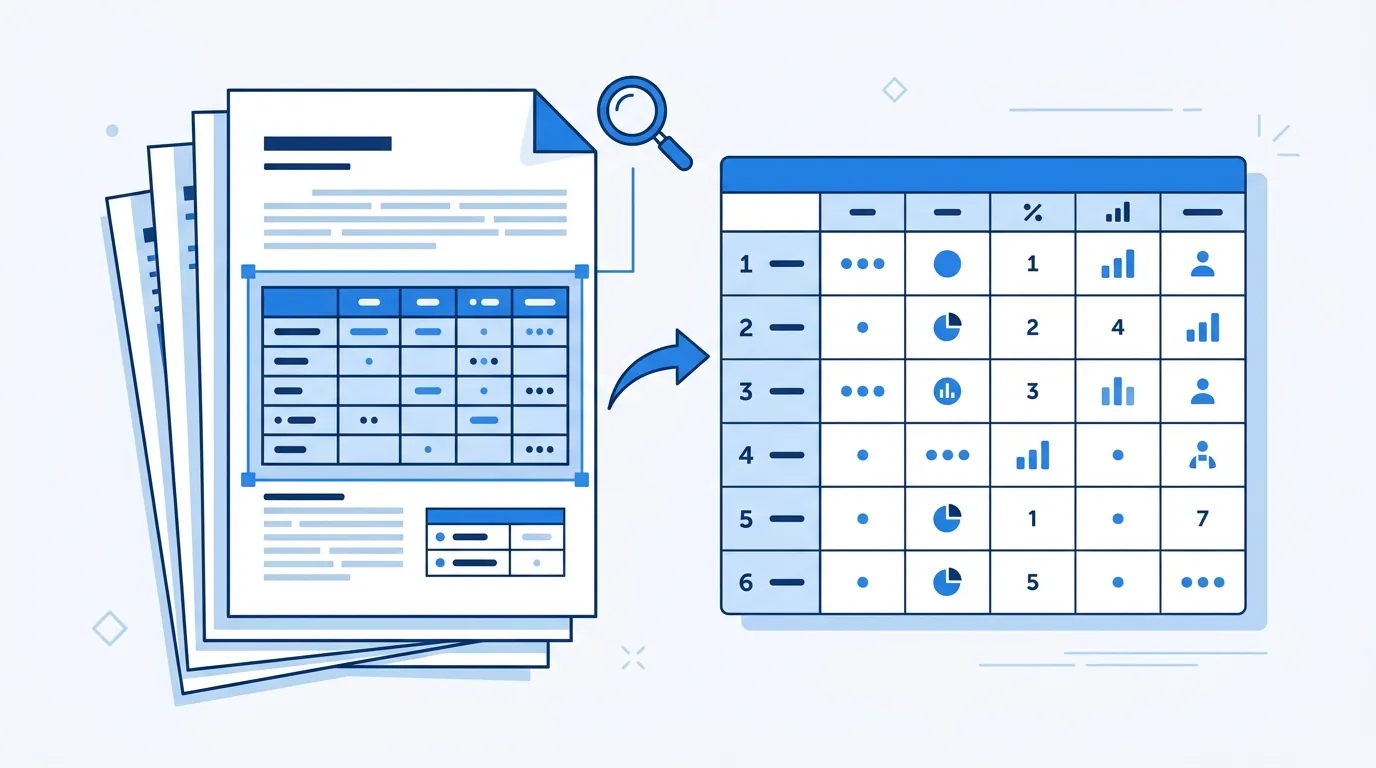
To convert a scanned PDF to Excel, upload the file to an OCR-based PDF to Excel converter, let it recognize the table on each page, review the extracted cells in the on-page preview, and download the result as .xlsx or CSV. A scanned PDF is a picture of a page, so OCR — not copy-paste — is the only way to get the data out.
This guide explains how to tell whether your PDF is scanned, how scan quality affects recognition, how to handle multi-page files, and which cells deserve the closest review.
What Is the Difference Between a Native PDF and a Scanned PDF?
A native PDF is produced by software: the text lives inside the file as real characters, and you can select, search, and copy it. Converting a native PDF to Excel can be as simple as extracting the text layer it already contains.
A scanned PDF is different. It starts as paper, goes through a scanner or a phone camera, and ends up as a page-sized image wrapped in a PDF container. There is no text layer at all — the characters you see are just pixels. The only way to turn those pixels back into spreadsheet cells is OCR, which reconstructs both the table structure and the text inside each cell.
That distinction decides everything about your workflow: a native PDF needs extraction, while a scanned PDF needs recognition — which means the quality of the image itself becomes part of the equation. (If your source is a single table image rather than a PDF, the general image to Excel guide covers that flow.)
One more boundary to know before you start: the current recognizer understands Chinese and English content (or a mix of the two). Tables in other languages are not reliably recognized yet.
How Can You Tell Whether Your PDF Is Scanned?
The fastest test takes five seconds: open the PDF, and try to select a sentence with your mouse.
If the text highlights and you can copy it into a note, you are holding a native PDF — the text layer exists. If clicking and dragging selects nothing, or selects the whole page as a single block, or the pasted result is garbage characters, the page is an image: it is a scanned PDF and OCR is required.
Two weaker signals point the same way. Scanned pages often show slight gray backgrounds, paper texture, or a dark strip near the spine from the scanner lid. And the file size is a hint: a one-page PDF that weighs several megabytes is usually a full-resolution image, while a native PDF of the same page is often tiny.
Mixed documents exist too — a native cover page followed by scanned appendices. If some pages select and others do not, treat the file as scanned and run the whole thing through OCR; the recognizer handles image pages, and the text-only pages lose nothing by going through the same flow.
How Do You Convert a Scanned PDF to Excel Step by Step?
Here is the complete workflow from upload to a downloaded spreadsheet. The PDF to Excel tool accepts files up to 3 MB and 5 pages on the free tier; the paid plan raises this to 20 MB and 20 pages — see the pricing page for details.
Upload the PDF and pick the page range
Drag your scanned PDF into the upload area. For multi-page files, set the page range to the pages that actually contain tables — skipping cover sheets, blank backs of pages, and appendix text keeps the result clean and shortens processing.
Wait for OCR recognition
The recognizer first finds the table on each selected page — where every row and column starts and ends — and then reads the text inside each cell. Because the source is a scan rather than a screenshot, this pass takes longer and is the step where scan quality matters most.
Review the extracted table
The result appears as an editable spreadsheet on the page, with a review hint when the output contains empty cells or high-risk values such as numbers and dates. Scans produce more misreads than clean screenshots, so go through the flagged cells against the original page before anything else.
Fix misreads in place
Correct any wrong values directly in the preview. Pay special attention to digits that scans distort most often — 0 and O, 1 and l, 5 and S — and to dates, where a single wrong character silently changes a record.
Download as Excel or CSV
Export as .xlsx to keep the grid structure for further work in Excel, or as CSV if the destination is a database or a script. Both formats open directly in Excel, Google Sheets, and Numbers.
How Does Scan Quality Affect Conversion Accuracy?
OCR can only read what the image actually shows, so the scan is not a formality — it is the input that decides the output.
Aim for around 300 DPI, straight-on, evenly lit. At 300 DPI, character shapes are sharp enough to read reliably; below that, letters lose the strokes OCR depends on. The page should be flat and parallel to the scanner glass or camera, with no shadows crossing the table.
Phone re-photographs of scanned pages are the weakest input. Photographing a printout, or photographing another screen showing the PDF, stacks one lossy image on top of another: curved page edges, glare, moire patterns, and perspective drift all appear. If the PDF already exists, convert the PDF itself instead of photographing it; if you must shoot paper, use even light and hold the camera parallel to the page.
Fix the scan, not the result, when quality is poor. A skewed, too-dark, or blurry page produces errors across the whole table, and you would have to correct them cell by cell. Re-scanning once usually costs less than reviewing and fixing hundreds of misread cells afterward.
Why Do Scanned PDFs Fail, and What Should You Double-Check?
Scans bring failure modes that screenshots almost never have. Knowing them tells you where to look during review:
Skew. A page fed into the scanner at an angle shifts every subsequent column sideways. Values drift into the neighboring column or rows stop aligning at all — this is the single most common scan failure. Straighten the page and re-scan rather than trying to convert a tilted one.
Spine and binding shadows. Booklets and bound reports leave a dark gradient near the inner edge, and characters sitting in that shadow lose their contrast. The cells closest to the spine deserve a line-by-line check.
Faded or dot-matrix printing. Old thermal paper, fading ink, and low-toner printouts produce broken character outlines that OCR fills in by guessing. Expect the error rate here to be visibly higher than on a crisp original — and expect to correct more cells.
Because of these modes, scanned pages carry a higher misread rate than screenshots, and the review step matters more. Verify every number and date against the original page — they are flagged with review hints for exactly this reason — and read the guide on fixing OCR column errors when values land in the wrong column instead of being misread.
Ready to Convert Your Scanned PDF?
Converting a scanned PDF to Excel comes down to three things: confirm the file really is a scan, give the OCR a clean page to read, and review the numbers and dates before you trust the file. A straight, evenly lit scan at around 300 DPI turns most of the review work into a quick scan of the flagged cells.
If your table lives in a plain image or screenshot instead of a PDF, switch to the general image to Excel guide; and if the output comes out with columns misaligned, the walkthrough on fixing OCR column errors shows how to correct the structure.
Convert a Scanned PDF to ExcelFrequently Asked Questions
Can a scanned PDF be converted to Excel?
Yes. A scanned PDF has no text layer, but an OCR-based converter reads the page image, rebuilds the table structure, and exports it as an .xlsx or CSV file you can edit.
What are the file size and page limits?
The free tier of the PDF tool accepts one file up to 3 MB and 5 pages; the paid plan raises the limit to 20 MB and 20 pages. Current limits are listed on the pricing page.
Is the scanned PDF to Excel conversion free?
There is a free tier for the PDF tool (3 MB / 5 pages per file). The related Excel extraction tool also offers a free daily quota of 3 conversions with no signup. Paid options are on the pricing page.
How do I handle a multi-page scanned PDF?
Upload the whole file and set the page range to the pages that contain tables. Skipping covers, blank pages, and plain-text appendix pages keeps the output clean and speeds up recognition.
Which languages does the recognition support?
Currently Chinese and English, including mixed Chinese-English tables. Tables in other languages are not reliably recognized yet.
Is the converted Excel file accurate?
No OCR is 100% accurate, and scans misread more characters than screenshots — especially with skew, shadows, or faded print. Review the flagged cells on the page and verify every number and date against the original before downloading.