
How to Convert Handwritten Notes to Excel: The Complete Guide
You have a stack of handwritten meeting notes, field logs, or lecture pages—and you need them in Excel, not as a wall of plain text. How to convert handwritten notes to Excel comes down to one decision: keep retyping every row by hand, or use AI handwriting recognition that reads your page and maps text into spreadsheet cells.
This guide walks through the full workflow: why Excel beats plain text for handwritten data, which methods actually preserve tables, how to prepare your photos for higher accuracy, and a step-by-step tutorial you can run in minutes using a Handwritten to Excel converter.
Why Should You Convert Handwritten Notes to Excel?
Handwritten notes hold valuable data—inventory counts, expense totals, survey responses, lab observations—but paper is hard to search, share, and analyze. Converting them to Excel unlocks capabilities plain text cannot match.
Structured analysis. Excel keeps rows, columns, and cell relationships intact. A handwritten inventory sheet becomes sortable and filterable. A list of expenses becomes summable. Plain text OCR dumps everything into paragraphs and destroys that structure.
Team collaboration. Excel files open in Microsoft Excel, Google Sheets, and most business tools. Share a .xlsx file with your team instead of emailing photos of notebook pages.
Search and audit trails. Once digitized, you can search for names, dates, or amounts instantly. For compliance-heavy workflows—timesheets, patient intake forms, financial records—structured Excel output is easier to validate than unstructured text.
Time savings. Manual data entry from handwritten pages typically runs 40–80 words per minute with error rates around 1–5% on repetitive numeric fields, according to common data-entry benchmarks cited in digitization industry reports. AI conversion handles the first pass in seconds; you spend time reviewing, not typing.
If you only need searchable text without columns—journals, quotes, or paragraphs—a dedicated handwriting to text guide may be enough. When your notes include lists, tables, or numeric columns, Excel is the right target format.
What Methods Can You Use to Convert Handwritten Notes to Excel?
Not every approach produces a usable spreadsheet. Here are the four methods people try, ranked by how well they preserve structure.
Can you type handwritten notes into Excel manually?
Yes—and for a half-page of neat notes, manual entry may be fastest. Copy each value into the correct cell, format headers, and apply formulas yourself. The problem scales quickly: a 5-page field log with 200 rows can take hours and introduce typos that skew totals.
Does Microsoft Excel have built-in handwriting recognition?
Excel itself does not scan photos of handwritten pages. You can use stylus input on a tablet to write directly into cells, but that requires rewriting—not converting—existing paper notes. For photographed or scanned handwriting, you need an OCR or AI extraction tool upstream.
Can regular OCR tools convert handwriting to Excel?
Standard OCR—designed for printed text—often fails on handwriting. Even when it reads words correctly, it usually outputs a text block instead of a grid. Headers drift, columns collapse, and numbers land in the wrong cells. Handwriting-specific AI tools detect both the text and the table layout.
What is the best method for handwritten notes with tables?
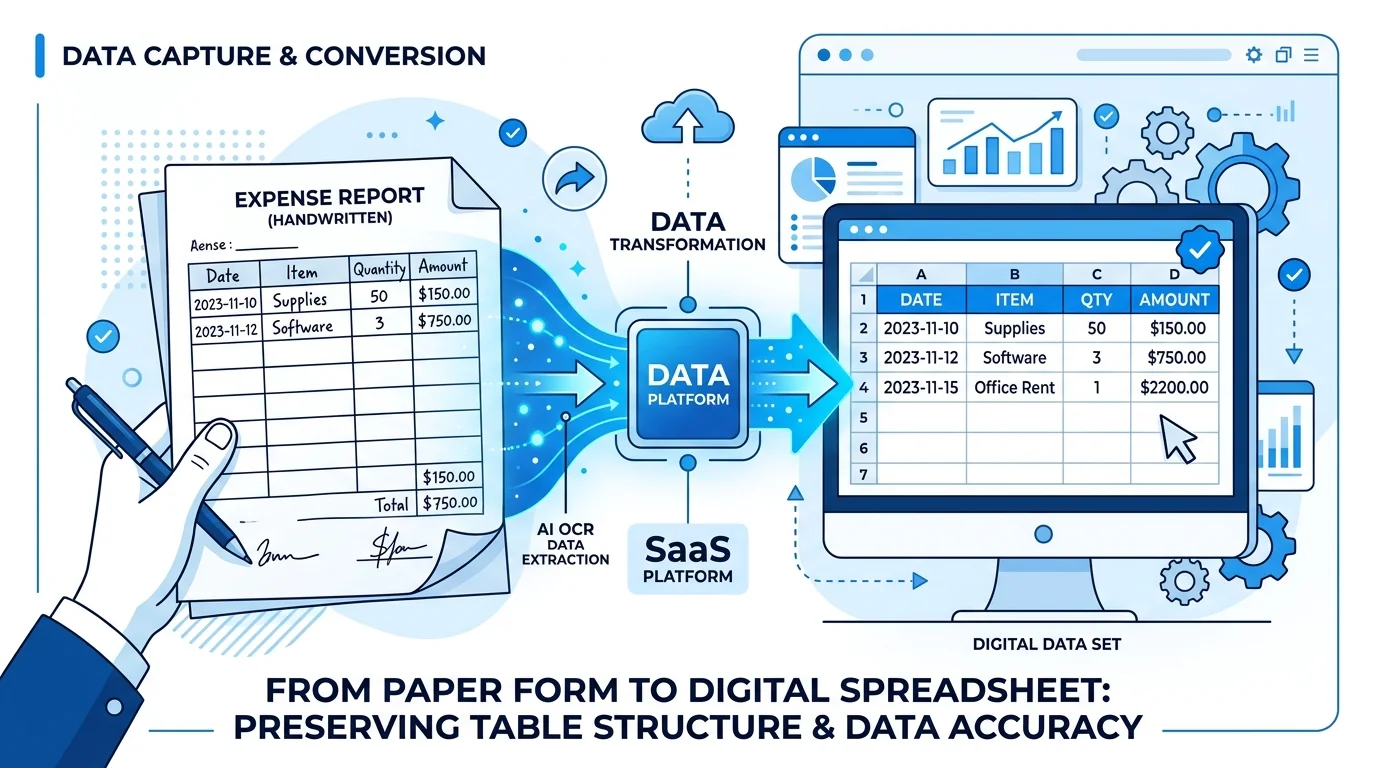
AI-powered handwritten to Excel converters combine handwriting recognition (ICR) with table structure detection. They identify rows, columns, merged cells, and headers, then export an .xlsx file that mirrors your original layout. This is the approach used by the Handwritten to Excel converter and similar specialized tools.
How Does AI Handwriting Recognition Work for Excel Export?
Understanding the pipeline helps you set realistic expectations and capture better source images.
Image preprocessing. The system corrects skew, adjusts contrast, and reduces noise from shadows or yellowed paper. Blurry or uneven lighting causes most recognition failures—preprocessing fixes what it can before text detection runs.
Handwriting detection. Unlike printed-text OCR, handwriting models are trained on diverse scripts: print, cursive, mixed-case, and messy field notes. The model assigns each stroke to characters and words.
Layout analysis. This step separates a generic OCR tool from a spreadsheet converter. Computer vision finds row boundaries, column edges, and header rows—even when grid lines are faint or absent. Values map to the correct (row, column) coordinates.
Excel assembly. Detected structure exports to .xlsx with cells populated in the right positions. You download an editable file compatible with Microsoft Excel and Google Sheets.
Modern AI handwriting tools report high accuracy on clear handwriting—often 90–99% depending on legibility and image quality. Messy cursive, faded ink, and cramped tables still need a human review pass, but the first draft beats manual entry by a wide margin.
How Do You Convert Handwritten Notes to Excel Step by Step?
Follow this workflow to go from paper to spreadsheet in minutes.
Step 1: Capture a clear photo or scan
- Use even, natural lighting—avoid harsh shadows across the page.
- Hold your phone parallel to the page; perspective distortion bends table rows.
- Include the full page with all column edges visible.
- For multi-page notes, capture each page separately or combine into a PDF.
- Supported formats: JPG, PNG, PDF, and most mobile photo formats.
Aim for the equivalent of 300 DPI on scans or a sharp, well-lit phone photo. If text looks fuzzy in the preview, retake the shot.
Step 2: Upload to a handwritten-to-Excel tool
Open the Handwritten to Excel converter and upload your file. No desktop software install is required for browser-based tools. Drag-and-drop works on desktop; on mobile, use your camera roll or scan app export.
For printed tables or screenshots—not handwriting—the general Image to Excel converter may be faster. Handwriting-specific models handle cursive and uneven strokes better.
Step 3: Let AI extract text and table structure
The engine runs handwriting recognition and layout detection automatically. Processing typically finishes in seconds per page. For batch jobs—multiple meeting notes or form pages—check whether your tool supports uploading several files at once (some tools handle up to 20 documents in one batch).
Step 4: Review the Excel output
Open the preview or downloaded .xlsx and spot-check:
- Headers — Do column titles match your original?
- Numbers — Verify amounts, quantities, and dates; handwriting often confuses
1/7,0/6, and5/S. - Empty cells — Confirm blank fields stayed blank rather than inheriting neighbor values.
- Merged or multi-line cells — Complex layouts may need manual adjustment.
A five-minute review prevents costly errors in downstream analysis.
Step 5: Download and use your Excel file
Save the final .xlsx file. Import it into your accounting system, add pivot tables, share via Google Sheets, or archive for compliance. If you need plain text excerpts for search indexes, run a secondary pass through an Image to Text tool—but keep Excel as the source of truth for structured data.
How Should You Prepare Handwritten Notes for the Best OCR Results?
Small changes at capture time dramatically improve accuracy.
Write with separation. Leave space between columns and rows. Crowded tables confuse layout detection.
Use dark ink on light paper. Faint pencil and highlighter-only notes produce weak contrast.
Flatten the page. Curved notebook spines distort grid geometry; scan flat or press the page gently.
One table per photo when possible. Extremely dense pages with multiple unrelated tables may need cropping into separate uploads.
Clean the lens. Smudged phone cameras create blur that no AI can fully recover.
If recognition still struggles, try converting to high-contrast black-and-white in your scan app before upload—a technique recommended in Google's document scanning best practices for improving OCR input quality.
What Are the Most Common Mistakes When Converting Handwriting to Excel?
Avoid these pitfalls that send people back to manual typing.
Using generic OCR for structured notes. Plain text output saves no time if you rebuild columns yourself. Choose a tool that exports .xlsx with layout preserved.
Skipping the review step. AI accelerates data entry; it does not replace validation on financial, medical, or legal records.
Uploading low-resolution images. Social-media compressed photos or extreme zoom crops lose stroke detail.
Ignoring mixed content. A page with a table and long paragraphs may need section cropping—extract the table separately for cleaner columns.
Expecting perfect math. OCR reads what is written; it does not recalculate formulas. Verify totals independently.
Which Document Types Work Best for Handwritten to Excel Conversion?
Handwriting AI handles a wide range of real-world documents:
| Document type | Excel use case |
|---|---|
| Meeting notes with action items | Task tracking and owner assignment |
| Field inspection logs | Compliance reporting and trend analysis |
| Handwritten expense lists | Reimbursement and accounting import |
| Survey or intake forms | Response aggregation and charting |
| Inventory count sheets | Stock reconciliation |
| Lecture notes with structured outlines | Study guides and shared summaries |
| Timesheets and time cards | Payroll processing |
Highly stylized scripts, heavy strike-throughs, or diagrams overlaid on tables may need manual cleanup—but most everyday business and academic notes convert cleanly on the first pass.
How Do You Clean Up Excel Data After OCR Conversion?
Even strong AI output benefits from a short cleanup routine before the file enters your workflow.
Fix misread characters. Sort numeric columns to surface outliers—a date field showing l5/03 instead of 15/03 stands out quickly. Use Excel's Find and Replace for systematic fixes when the same character confuses repeatedly.
Normalize headers. Rename generic columns (Column A, Field 1) to match your template. Consistent headers make vlookup, pivot tables, and imports reliable.
Split combined cells. If two values landed in one cell, use Data → Text to Columns in Excel or the split function in Google Sheets.
Apply number formats. OCR returns text by default. Convert amount columns to currency, date columns to date format, and ID columns to plain numbers so formulas work.
Validate totals. Re-sum numeric columns and compare against handwritten subtotals on the source page. Discrepancies usually trace to a single misread digit.
Archive the source image. Save the original photo alongside the Excel file. When an audit question arises, reviewers can compare cell values to the paper record.
For large cleanup jobs, see future guides on Excel data cleaning after OCR—or start with a single representative page to build a correction checklist before batch processing.
Which Output Format Should You Choose: XLSX, CSV, or Google Sheets?
XLSX (Excel) is the default and best choice when you need formatting, multiple sheets, or direct handoff to finance and operations teams.
CSV works when importing into databases, ERP systems, or scripts. You lose formatting but gain universal compatibility.
Google Sheets fits teams that collaborate in the browser. Download the .xlsx from your converter, upload to Google Drive, and open with Sheets—layout usually transfers cleanly for standard tables.
Choose based on the next system that consumes the data, not the conversion tool itself.
FAQ
Can AI convert handwritten notes to Excel for free?
Many online tools offer free tiers or trial conversions without signup. Upload a photo, download an Excel file, and evaluate accuracy before committing to paid plans for high-volume workflows. The Handwritten to Excel converter supports free online conversion for typical page sizes.
How accurate is handwritten to Excel conversion?
Accuracy depends on handwriting legibility and image quality. Clear print handwriting on a well-lit photo often reaches 90–99% character accuracy with modern AI. Cursive, faded ink, and dense tables score lower but still beat manual entry speed; always review critical numbers before final use.
Does it work with cursive or messy handwriting?
Yes. Handwriting-specific models train on diverse samples—including doctor's notes, rushed meeting scribbles, and cursive scripts. Messier writing may need more review, but specialized tools outperform standard printed-text OCR significantly.
Can I convert multiple pages at once?
Batch upload lets you process several pages in one session—useful for digitizing a full notebook or stack of forms. Check your tool's batch limit; some support up to 20 files per run.
What file format do I download?
Most tools export standard .xlsx (Excel) files. Some also offer CSV for database imports or copy-to-clipboard for quick paste into existing sheets.
Is my document data secure?
Reputable converters encrypt uploads in transit (SSL/TLS) and delete files after processing—often within 24 hours. Avoid uploading documents with unnecessary sensitive identifiers when testing a new tool; read the provider's privacy policy for retention details.
How is this different from converting handwriting to plain text?
Plain text OCR gives you a searchable paragraph—fine for journals or quotes. Excel conversion preserves rows, columns, and cell values so you can sort, filter, and calculate. If you need text only, see our guide on converting handwritten notes to digital text.
Ready to Convert Your Handwritten Notes?
Stop retyping pages cell by cell. Capture a clear photo, upload it to the Handwritten to Excel converter, review the structured output, and download an editable spreadsheet in minutes.
For printed tables, screenshots, and scanned documents, try the main Image to Excel tool. For text-only extraction, use Image to Text. Start with one page, validate the results, then batch the rest of your notebook.