
How to Extract Text from Images for Free - Complete Guide 2025
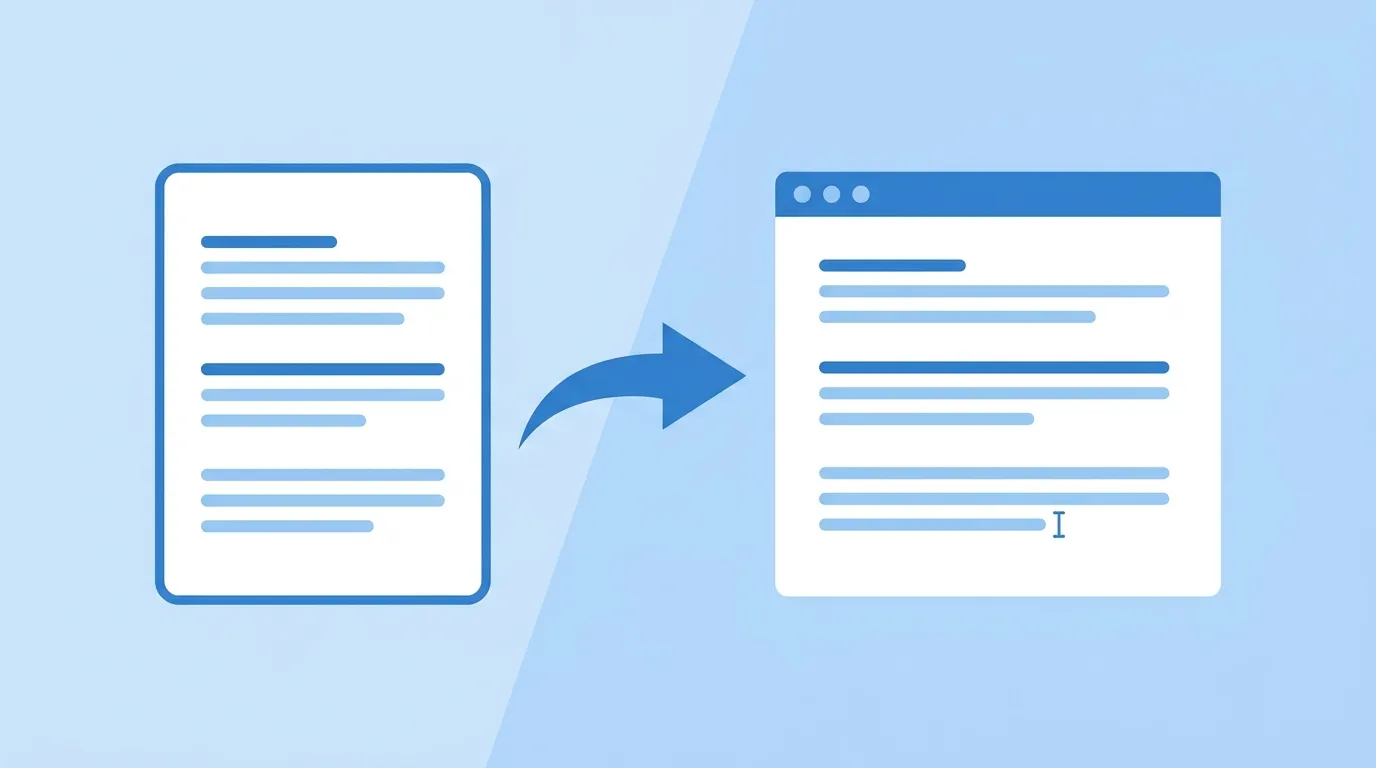
How to Extract Text from Images for Free in 2025
Extracting text from images has become an essential skill in today's digital world. Whether you need to copy text from a screenshot, convert a scanned document to editable text, or turn a photo of a document into a Word file, free OCR (Optical Character Recognition) tools make this possible without spending a dime.
In this comprehensive guide, we'll walk you through everything you need to know about extracting text from images, including the best free tools, step-by-step tutorials, and pro tips to get the most accurate results.
What Is OCR and Why Do You Need It?
OCR stands for Optical Character Recognition, a technology that converts different types of documents—such as scanned paper documents, PDF files, or images captured by a digital camera—into editable and searchable data.
Think about all the times you've wanted to copy text from an image but couldn't. Maybe you took a screenshot of an article, received a document as an image, or photographed a document instead of scanning it. Before OCR, the only way to get that text was to type it out manually—a tedious and time-consuming task.
With modern AI-powered OCR tools, you can extract text from images in seconds, saving hours of manual work. Whether you're a student digitizing lecture notes, a professional processing invoices, or a content creator copying text from social media images, OCR tools are game-changers.
Method 1: Using Free Online OCR Tools
The easiest and most accessible way to extract text from images is using free online OCR tools. These browser-based solutions require no software installation and work on any device with an internet connection.
Our recommended free image to text converter offers these key benefits:
• No Registration Required: Start extracting text immediately without creating an account
• High Accuracy on Clear Images: Advanced AI technology delivers reliable recognition — review the output before use
• Multiple Formats Supported: Works with JPG, PNG, screenshots, and scanned documents
• English & Chinese: Extract text from documents in either language, including mixed-language content
• Edit Before You Use: Correct any recognition errors in the built-in editor before copying or downloading
• Free Export Options: Download as TXT or copy directly to clipboard
Step-by-Step Tutorial: Extract Text from Any Image
Here's how to extract text from images using our free online tool:
Upload Your Image
Click the upload button or simply drag and drop your image onto the tool. You can upload JPG, PNG, or screenshot files directly from your computer or mobile device.
Automatic Text Recognition
Our AI-powered OCR technology automatically analyzes the image and extracts all visible text. This process takes just a few seconds, even for complex documents.
Review and Edit
The extracted text appears in an editable box. Review it for accuracy and make any necessary corrections. The tool preserves paragraph structure and formatting as much as possible.
Export Your Text
Copy the text to your clipboard with one click, or download it as a TXT file. You can also use the text directly in your preferred application.
Method 2: Using Mobile Devices
If you're using a smartphone or tablet, you can extract text from images using built-in features or third-party apps.
iOS (iPhone) Live Text: Apple's Live Text feature, introduced in iOS 15, allows you to copy text from photos directly in the Camera app or Photos app. Simply open a photo, tap the text icon, and select the text you want to copy.
Android Google Lens: On Android devices, Google Lens can extract text from images. Open the Google app, tap the Lens icon, and either take a photo or select one from your gallery. The recognized text will appear and can be copied or searched.
While these built-in features are convenient, they may not handle complex layouts, handwriting, or low-quality images as well as dedicated OCR tools. For best results with challenging images, use our free online image to text converter.
Pro Tips for Better OCR Results
Getting the best text extraction results depends on the quality of your source image and the OCR tool you choose. Here are our top tips:
Use High-Resolution Images: The clearer your image, the more accurate the text recognition. Avoid blurry or pixelated images when possible.
Ensure Good Lighting: Photographs taken in poor lighting can result in inaccurate text extraction. Natural, even lighting works best.
Straighten the Image: Crooked documents can confuse OCR tools. Try to capture or scan documents straight on, or use an image correction feature before extraction.
Choose the Right Format: While most tools support multiple formats, PNG files generally preserve more quality than JPEG. For screenshots, PNG is the preferred format.
Try Different Tools: If one OCR tool doesn't give you the results you want, try another. Different tools may perform better with specific types of images or documents.
Consider Language Settings: For documents in languages other than English, make sure the OCR tool supports that language and select it in the settings.
Common Use Cases for Image to Text Extraction
The applications for image to text technology are virtually endless. Here are some of the most common use cases:
Students and Researchers: Convert lecture notes, book excerpts, and research paper sections into searchable, editable text. Perfect for highlighting, annotating, and referencing in your work.
Business Professionals: Digitize printed documents, extract data from invoices and receipts, and convert meeting notes into editable formats for easier sharing and collaboration.
Content Creators: Copy text from social media screenshots, convert printed materials into blog content, and extract quotes from images for your articles and posts.
Legal and Medical Professionals: Convert contracts, medical records, and other sensitive documents into searchable, digital formats while maintaining accuracy.
Everyday Users: Copy addresses from business cards, extract contact information from flyers, or save text from memes and inspirational images.
Free vs Paid OCR Tools: Is Paid Worth It?
While many excellent free OCR tools are available, paid tools often offer additional features. Here's how to decide if you need a paid solution:
When Free Tools Are Enough: If you only need to extract text occasionally, from standard documents, and don't need advanced features, free tools like ours will serve you well.
When to Consider Paid Tools: Paid OCR tools may be worth it if you need:
• Higher volume processing (batch processing of many files)
• Advanced features like table recognition and form extraction
• API access for integration into your own applications
• Priority support and SLA guarantees
• Enhanced security for sensitive documents
For most users, starting with a free tool is the smart choice. You can always upgrade to paid services if your needs grow.
Start Extracting Text from Images Today
Extracting text from images has never been easier, thanks to free online OCR tools. Whether you need to convert a screenshot to text, digitize a scanned document, or copy text from a photo, the tools and techniques in this guide will help you get the job done quickly and accurately.
Ready to try it yourself? Our free image to text converter requires no registration. Simply upload your image and get editable text you can review, correct, and copy.
Don't let static images hold you back. Start extracting text from images today and unlock the full potential of your digital documents.
Try Free Image to Text ConverterFrequently Asked Questions
Can I extract text from images for free?
Yes! Our image to text converter is free to try. You can extract text from any image without registration or payment for basic functionality.
What image formats are supported?
Most free OCR tools support common formats including JPG, JPEG, PNG, GIF, and BMP. Some also support PDF files and scanned document formats.
How accurate is free OCR?
Modern AI-powered OCR tools deliver high accuracy on clear, high-quality images. Accuracy may be lower for blurry images, unusual fonts, or handwriting, so always review the output before using it.
Can OCR read handwriting?
Some advanced OCR tools, especially those using AI and machine learning, can recognize handwriting. However, neat, legible handwriting works better than cursive or messy notes.
Is my data safe when using online OCR?
Reputable online OCR tools use encryption and automatically delete uploaded files after processing. Always check the tool's privacy policy before uploading sensitive documents.
Can I extract text from multiple images at once?
Many OCR tools now offer batch processing capabilities. Check if your chosen tool supports batch uploads if you need to process multiple images simultaneously.